Getting your company set up on LinkedIn isn't just about checking a box. It's a two-part process: first, you create an official LinkedIn Company Page to act as your brand's professional home base. Then, you make sure your team can actually find and add it to their own profiles.
Getting this right unlocks some serious growth opportunities, especially for startups trying to make a name for themselves.
Before we get into the "how," let's talk about the "why." A LinkedIn Company Page isn't just another social media profile to manage. Think of it as a strategic asset, your digital headquarters for building credibility in a crowded market.
For a founder, a polished page can be the deciding factor for a potential hire, client, or even an investor who's doing their due diligence. An empty or nonexistent page screams amateur hour. A well-built page, on the other hand, projects vision and professionalism.
So many companies make the mistake of treating their page like a static business card. Don't do that. Your page should be a living, breathing channel for telling your company's story.
It’s your chance to:
When you take this approach, your page transforms from a simple directory listing into a magnet for opportunity.
Putting in the effort to create a complete company page has a massive payoff. Companies with active, fully-filled-out profiles get 30% more weekly views. That statistic alone should tell you why optimizing your page is a no-brainer for startups chasing tech talent.
But the real magic happens when your team gets involved. Your own employees drive 30% of all engagement on your page, and their shares can boost your organic reach by a staggering 14 times compared to external content, according to research on LinkedIn's platform statistics. You’re essentially turning your team into your most powerful marketing engine.
For example, imagine a top software engineer is weighing offers from two similar startups. Company A has a vibrant LinkedIn page showing its team celebrating a product launch and a post from the CTO about their new tech stack. Company B doesn't even have a page. The choice is pretty clear—credibility and culture win out every time.
Ready to give your company an official home on LinkedIn? Good call. Setting up a Company Page is one of the fastest ways to build your brand’s digital presence, and thankfully, it’s less of a technical chore and more of a straightforward, guided process. You can get the basics live in minutes.
But before you can plant your flag, LinkedIn has a few ground rules. They need to make sure you’re a legitimate representative of the company, which helps keep the platform clean and credible. Think of it as a quick security check.
LinkedIn wants to see that you're a real, active user before handing over the keys to a company page. This is purely to prevent spam and make sure pages are managed by actual employees.
Your personal profile needs to meet a few benchmarks:
yourname@yourcompany.com).Actionable Tip: If you ever find the "Create a Company Page" button is grayed out, methodically check these five requirements. The most common culprit is a brand-new personal profile or not having the company email verified in your settings.
Once your profile is good to go, finding the creation tool is easy. From your LinkedIn homepage, just click the “For Business” icon in the top-right corner. A menu will drop down, and at the very bottom, you’ll see the option to “Create a Company Page +”.
Clicking this brings you to a screen to choose your page type. For most businesses, whether you're a startup or a global enterprise, the choice is simple:
Go ahead and select “Company.” You’re now on the main setup form, which is where you’ll plug in the foundational details of your business. The whole thing can be done in under 10 minutes.
This infographic really simplifies the journey—it all starts with a solid profile that generates views and, ultimately, expands your brand’s reach across the network.
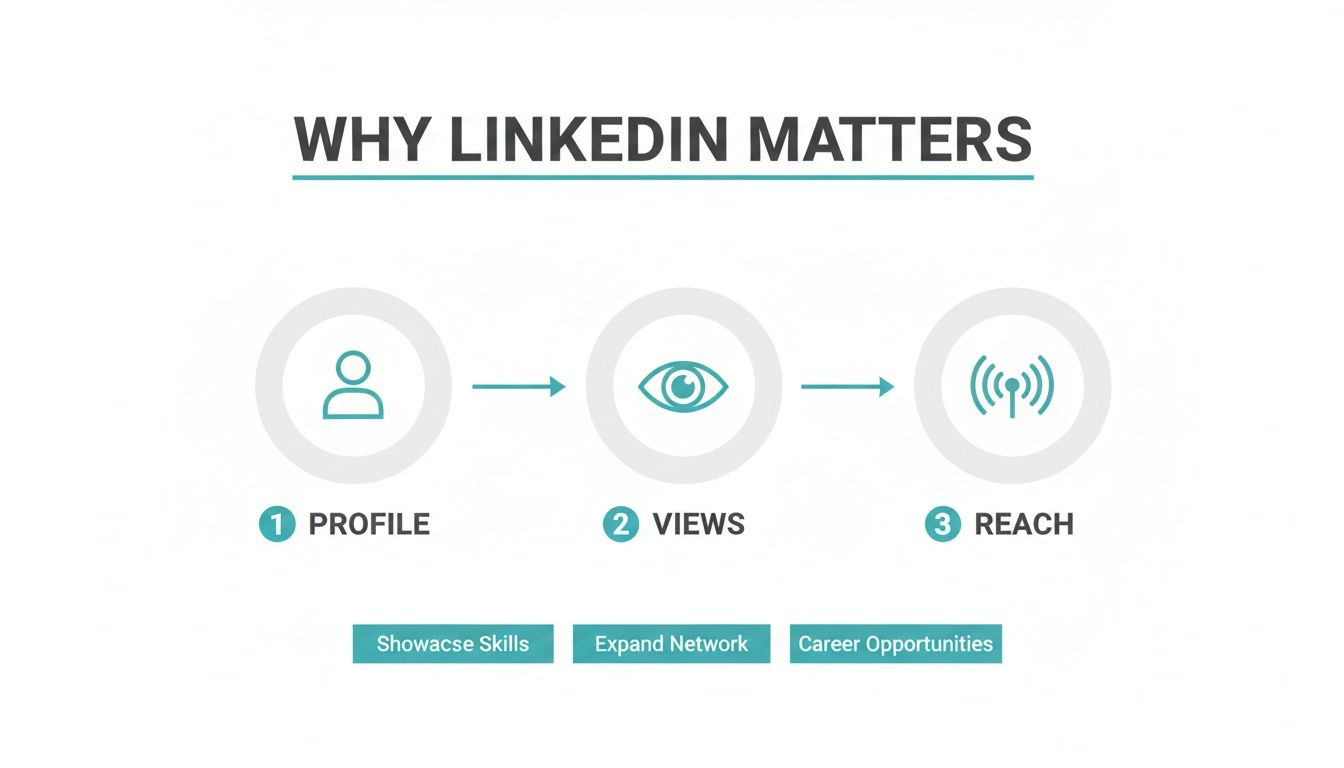
It’s a great reminder that a well-maintained page is the engine for everything else. According to research highlighted by Cognism, pages that post just 1-2 times per week see double the engagement. Consistency pays off.
This first form is where your company’s digital identity begins. Every field here matters for helping people find you. To make it even easier, here’s a quick checklist of what you'll need to have ready before you start.
Having these assets and details on hand will make the setup process a breeze.
| Item | Requirement/Best Practice | Why It Matters |
|---|---|---|
| Company Name | Your official, registered business name. | Ensures brand consistency and helps users find you easily. |
| Public URL | A clean, recognizable vanity URL (e.g., your-startup-name). | A custom URL is professional, memorable, and easier to share than a generic one. |
| Website URL | The official URL for your company's website. | Drives traffic directly to your site and verifies your online presence. |
| Industry | The category that best describes your business. | Crucial for LinkedIn’s search algorithm and helps you appear in relevant searches. |
| Company Size | The correct employee count range. | Provides context for job seekers and potential partners. |
| Company Type | Public, Privately Held, Partnership, etc. | Adds another layer of detail for visitors to understand your business structure. |
| Logo | A high-resolution square logo, ideally 300 x 300 pixels. | This is your brand's face on LinkedIn. A clear logo builds immediate recognition. |
| Tagline | A short, compelling one-liner (max 120 characters). E.g., "Building AI tools that help marketing teams write better content." | This is your elevator pitch. It’s one of the first things people read. Make it count. |
Once you’ve gathered these items, filling out the form is simple.
After you check the verification box and hit “Create page,” you’re officially live. Congratulations—your company now has a home on LinkedIn! Now, it's time to start fleshing it out and making it a true resource.
Okay, your LinkedIn Company Page is officially live. Hitting “publish” is the easy part. Now comes the real work: turning that digital real estate into something that actually attracts top talent, clients, and partners.
An empty page is like a storefront with nothing in the window. Let's fill it with compelling content and visuals that tell your story.

Your "About" section is your one-shot to explain who you are and why you matter. This isn't just a corporate filing; it's a conversation starter. Go beyond what your company does and get to the heart of why it exists.
Here's how to craft a narrative that connects:
First impressions are almost entirely visual. A fuzzy logo or a generic cover photo instantly tells visitors you don't sweat the details.
Your logo needs to be a crisp, high-resolution square file. Aim for 300 x 300 pixels so it looks sharp on any device. This is the icon people will see everywhere.
Your cover banner is your billboard. Don't just slap a logo on a solid color. Use this space to convey your culture or mission. A shot of your team collaborating on a project or a graphic illustrating your core value proposition works far better.
A complete and visually polished page isn’t just for looks. It has a measurable impact. Fully optimized pages don't just look better—they get 30% more weekly views.
An empty page with zero followers feels like a ghost town. Your first followers provide crucial social proof, and the best place to start is with your own team.
Use the "Invite Connections" tool to ask your first-degree connections to follow the page. You get a monthly credit allocation for this, so use it wisely on employees, advisors, and trusted industry partners.
Encourage your team to not only follow the page but to officially add the company to their personal profiles. This single action is a huge trust signal and one of the most organic ways to expand your page's reach. Improving the candidate experience starts with your own people.
Once you have a few followers, you need to start posting. This is where the magic happens. Active pages get five times more page views, seven times more impressions, and a staggering eleven times more clicks per follower. It’s not enough to just exist; understanding how to post on LinkedIn effectively is what truly drives engagement and growth.
Think of your LinkedIn Company Page as more than just a digital storefront. For startups and tech companies, it's a hiring engine just waiting for you to turn the key. This is where you go beyond just talking about your brand and start actively pulling in the engineers, designers, and product managers who will build your company's future. It's how you learn how to add a company to LinkedIn in a way that fuels your growth.

Just posting open roles and waiting for applications is a losing game. The best people, especially in tech, are almost always passive candidates—talented professionals who are already employed and not actively looking. To get their attention, you have to give them a compelling reason to even consider a move.
Your page needs to be a window into what it’s really like to work at your company. This means you have to show, not just tell. Don't just claim you have a great engineering team; show them in action.
For instance, you could post a short Q&A with your lead developer talking about the tech stack for a cool new project. Or, it could be as simple as a photo of the team celebrating a product launch. This is the kind of content that makes your company feel real and your opportunities feel tangible.
The goal is to make a top engineer, scrolling through their feed on a lunch break, pause and think, "Now that looks like an interesting place to work." This is how you plant the seed long before they ever consider a job change.
Your content strategy should be zeroed in on what actually matters to tech talent. They want to see impact, they want to see innovation, and they want to see a healthy work environment.
Here are a few actionable content ideas that work well for tech companies:
This kind of consistent, human-focused content is how you start building a real talent pipeline. If you're serious about building out that pipeline, it's also worth digging into the nuances of how to hire software engineers with a more strategic, long-term approach.
When you're ready to switch from warming up passive candidates to actively hiring, the Careers Tab becomes your command center. This feature lets you post jobs directly on LinkedIn, meeting candidates right where they're already spending their time.
But posting the job is just step one. Use the description to sell the role, the team, and the mission. Instead of a dry list of requirements, tell a story about the impact this person will make. For example, open a Senior Engineer role description with: "Join the team that's building the core recommendation engine our users interact with millions of times a day."
By combining direct job postings with a steady stream of culture-focused content, your page becomes a magnet for both active and passive candidates. This ensures you have a pipeline of top talent ready to go whenever you need it.
Setting up a LinkedIn Company Page should be a quick win, but hitting a roadblock can be incredibly frustrating. You follow the steps, and suddenly, something just doesn't work. It’s a common story.
Fortunately, most setup problems come from just a handful of simple, easy-to-fix oversights. Knowing what to look for can save you a ton of time and prevent that "what did I do wrong?" headache.
One of the most frequent complaints is about the "Create a Company Page" button being grayed out and unclickable. This isn't a bug—it’s LinkedIn's security and verification system doing its job. It almost always means your personal profile hasn’t met the minimum criteria yet.
Before you can create a page, LinkedIn needs to see that you're a real, established user. Your personal profile must:
If you’re a founder who just created a personal profile this morning, this is likely the culprit. The solution is just a bit of patience. Spend a week or so fleshing out your profile, adding a professional headshot, and connecting with people you know.
You've got the perfect company name, you type it in, and bam—an error message pops up: "This name is already taken." This can happen even when a search for that name shows no active page. The name might be tied to a dormant page, or someone else could have already claimed the unique vanity URL.
Don't panic. You have a few simple workarounds:
Here’s a key tip: Your public URL is what needs to be unique, but your displayed company name has more flexibility. You can often grab a unique URL variation (like
linkedin.com/company/innovate-tech-nyc) and then set your page's display name to the exact one you wanted, as long as you're not stepping on a trademark.
You’ve created the page and are waiting for that final verification email to hit your inbox. Minutes go by, and... nothing. The first, most obvious step is to check your spam or junk folder.
If it's still missing, the issue is almost certainly with your company's email security. Corporate email filters can be notoriously aggressive and might block automated emails from platforms like LinkedIn.
Your best bet is to reach out to your IT administrator and ask them to safelist (or "allow") all emails coming from the linkedin.com domain. Once they confirm it's done, you can go back into your page admin settings and request a new verification link. This one small step usually solves the problem right away.
Even with your page up and running, a few common questions always seem to pop up. Let's clear up some of the most frequent ones we see from founders and marketing teams as they get started.
Think of your Company Page as your brand's home base. It’s the central hub representing your entire business, where all your employees live, and where you post your core brand story, culture content, and job openings.
A Showcase Page, on the other hand, is more like a dedicated product showroom. It's a sub-page that branches off from your main Company Page, built to spotlight a specific product line, a major initiative, or a distinct business unit. For example, a massive tech company might have one main page but create separate Showcase Pages for its cloud services and hardware divisions.
For most startups, a single, well-managed Company Page is all you need. Pour your energy there. Only even think about Showcase Pages once your company has grown to a point where you genuinely need different brand messages for entirely separate audiences.
Technically, yes, you can manually type a company name into your profile's Experience section even if it doesn't have an official page. But there’s a huge downside.
When you do this, the company name just shows up as plain text. There's no logo, and it doesn't link to anything. This immediately looks less professional and tells anyone viewing your profile that the company doesn't have an official presence. It’s a subtle but powerful knock against the credibility of both you and the business.
This is a key reason why knowing how to add a company to LinkedIn the right way—by creating a page first—is so critical.
A LinkedIn Company Page can have an unlimited number of admins, but it's absolutely crucial to assign roles based on what each person actually needs to do. Giving everyone "Super Admin" access is a common—and very risky—mistake.
Instead, use LinkedIn's tiered permission system to keep your page secure. The main roles include:
By assigning the right roles, you empower your team to contribute effectively while protecting your page from accidental changes or misuse.
Ready to stop just posting jobs and start attracting the right kind of tech talent? Underdog.io flips the script by connecting you with a curated pool of vetted candidates who are actively looking for roles at startups just like yours. Let the perfect hires come to you. Find your next great engineer or product manager at https://underdog.io.